Almost every serious application — a visa, a mortgage, a job, a university place — eventually asks for "supporting documents" as a single PDF. You have a passport scan, two payslips photographed on your kitchen table, a bank statement that downloaded as a PDF, and a reference letter someone emailed as a Word file.
Getting those into one clean file is not difficult, but the order it happens in matters, and doing it in the wrong order wastes a lot of time.
Why they want one file
It is not arbitrary. A caseworker opening your application wants one document they can scroll, not eleven attachments to download and mentally reassemble. Many portals also cap the number of uploads, not just the size — so six separate files may simply not fit in the form.
A single well-ordered PDF also removes ambiguity about which page is which, which matters when a reviewer is checking a list against what you sent.
The order to do things in
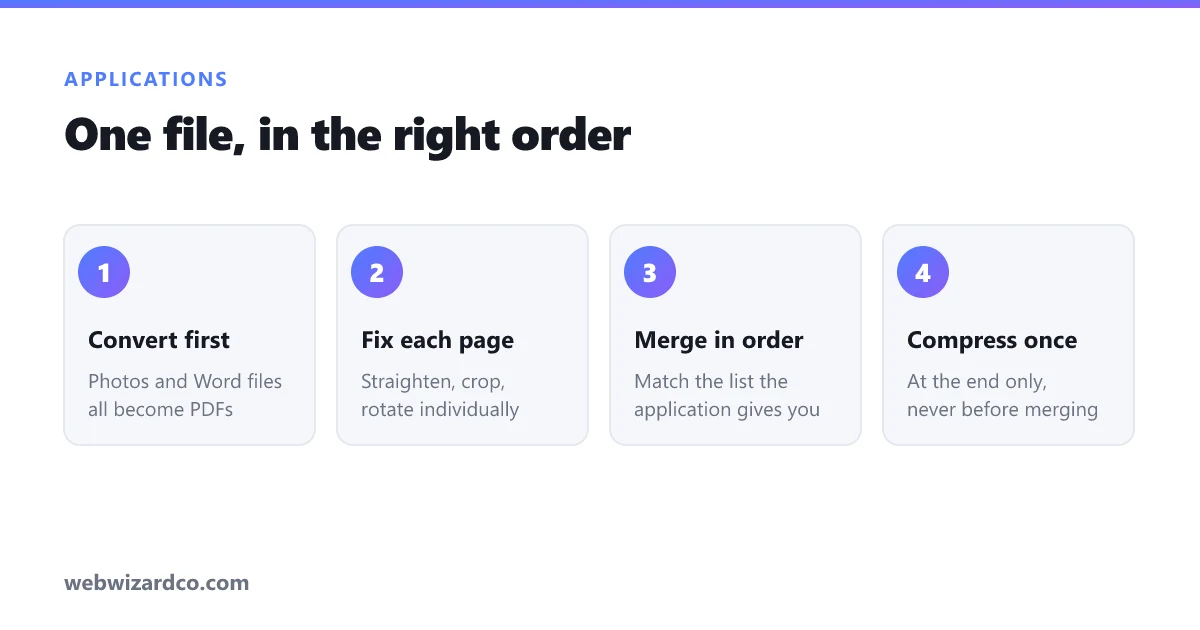
This is the part that saves the most time. Work in this sequence:
- Get everything into PDF form first. Photos become PDFs, Word files get exported as PDFs. Do not merge anything yet.
- Fix each document individually. Straighten, crop, rotate. It is far easier to fix one page now than to find it inside a 40-page merged file later.
- Merge, in the order the application lists.
- Compress last, once. Compressing before merging means compressing repeatedly, which degrades quality for no benefit.
That last point is the one people get wrong. Every compression pass on a scanned page loses a little more detail. Do it once, at the end, when you know the final size.
Turning what you have into PDFs
Photos of paper documents. Lay them flat in indirect daylight, shoot straight down, crop to the page edges. Our guide to scanning documents with your phone covers the technique properly — light and angle matter more than camera quality. Then use the image to PDF converter.
Word documents. Export as PDF rather than printing and rescanning. It keeps the text sharp and the file small.
Screenshots and downloads. Already digital, so treat them like photos — convert straight to PDF without printing.
Merging in the right order
Applications usually specify a document order. Follow it exactly, even when it seems arbitrary — a reviewer working through a checklist will thank you, and some portals genuinely reject out-of-order submissions.
Our PDF merge tool shows each file with its page count and lets you move them up and down before combining. That page count display is more useful than it sounds: it catches the case where a two-page bank statement only picked up one page.
If a document ended up in the wrong place, or you scanned a page twice, the same tool can remove pages from the merged file afterwards rather than making you start again.
Getting under the size limit
Scanned pages are what make application PDFs enormous. Six phone photos at full resolution easily produce 30 MB, and portals frequently cap at 2 MB.
Compress once, at the end. For documents, converting to grayscale often removes a third of the file on its own, and dropping the resolution to around 150 DPI is invisible on screen while still being perfectly readable. The detail is in how to reduce PDF file size.
One caveat: compressing rasterises the pages, so any selectable text becomes part of an image. For a bundle that is mostly scans, you lose nothing. If your bundle is mostly text-based PDFs, they are already small — do not compress them at all.
Name it properly
A file called merged.pdf or Scan_20260824_001.pdf is a small act of carelessness at the exact moment you are trying to look organised.
Use something like Surname-Firstname-Supporting-Documents.pdf, or whatever naming the application specifies. Some portals reject filenames containing spaces or special characters, so hyphens are the safe choice.
Check before you send
Open the finished PDF and scroll through it at 100%, not zoomed out:
- Is every document there, and in the required order?
- Is every page the right way up?
- Can you read the smallest text — reference numbers, dates, account numbers?
- Are all four corners of each scanned page visible?
- Is the file under the size limit, with room to spare?
A rejected application usually costs weeks. Two minutes of scrolling is the best-value part of this entire process.
One last thing worth knowing: these are exactly the documents you would least want sitting on a stranger's server — passports, statements, payslips. Both the merge and compress tools here run entirely in your browser, so the files never leave your device. If that matters to you, here is how to verify it for any tool.