Make a reel or short
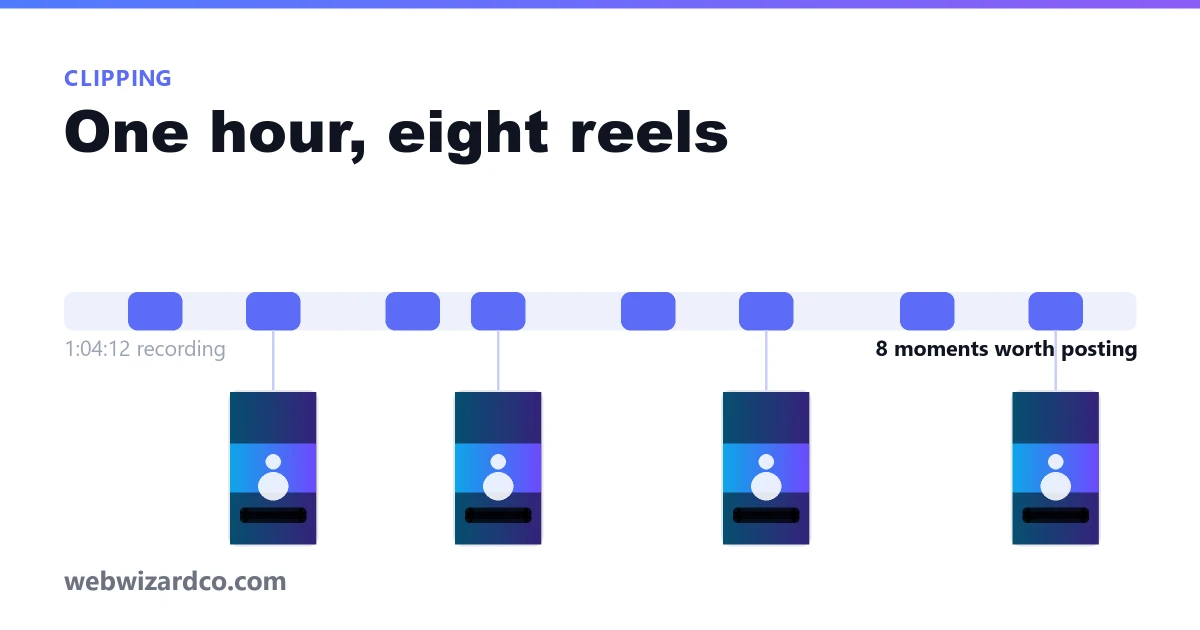
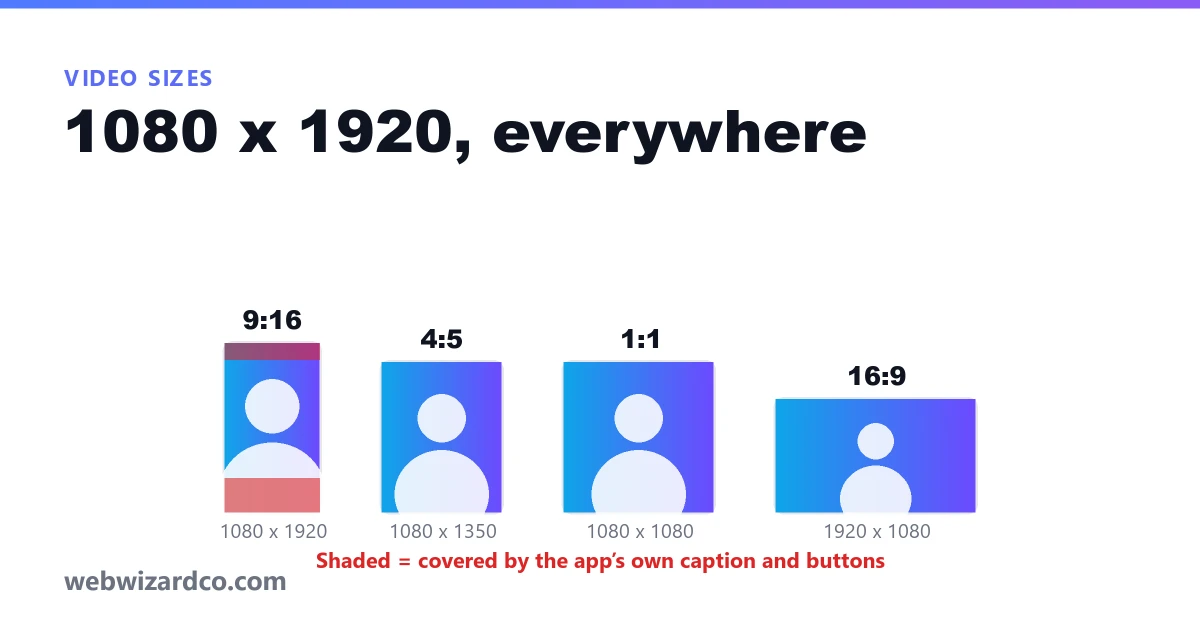
Trim a clip, reframe it to 9:16, burn in captions, export an MP4 — in your browser, with no watermark.
Up to 60s per clip · no sign-up needed.
Nothing is uploaded
Your browser decodes the video, draws each frame onto a canvas at the size you pick, and records it straight back out. The file never reaches a server, which is the only sensible way to handle footage that isn't published yet.
Exporting runs in real time
Because the recording happens as the clip plays, a 30-second reel takes about 30 seconds to write. That is the trade for not uploading anything. Switching to another tab pauses the recording rather than spoiling it — come back and it carries on.
Recording… 0% — in real time, so this takes as long as the clip.
1. Trim
Clip length 0:00 · playhead 0:00 · source 0:00
2. Shape & framing
3. Captions
Burned into the video, so they show with the sound off — which is how most reels are watched.
Free to use, no sign-up. Create a free account for 10 tracked exports a month and 3-minute clips, or go unlimited.
Where to get the file
This tool works on a video file from your own device. That is a deliberate limit, and in practice it is also the better input: you are editing the original rather than a re-compressed copy, so the result is sharper than anything a link-based tool could have given you.
If the video is yours and it is already published, you can get the file back. YouTube Studio has a download button on every upload you own, and Vimeo lets you enable downloads on your own videos. Export it, drop it in here, and you have the full editor.
If it is someone else's video, whether you may clip and repost it is their call. Tools that let you paste any link and get an MP4 are pulling the file off the platform's servers with a scraper, which breaks the terms you both agreed to. We would rather be the tool that still works next year.
Reframing a wide video for a tall screen
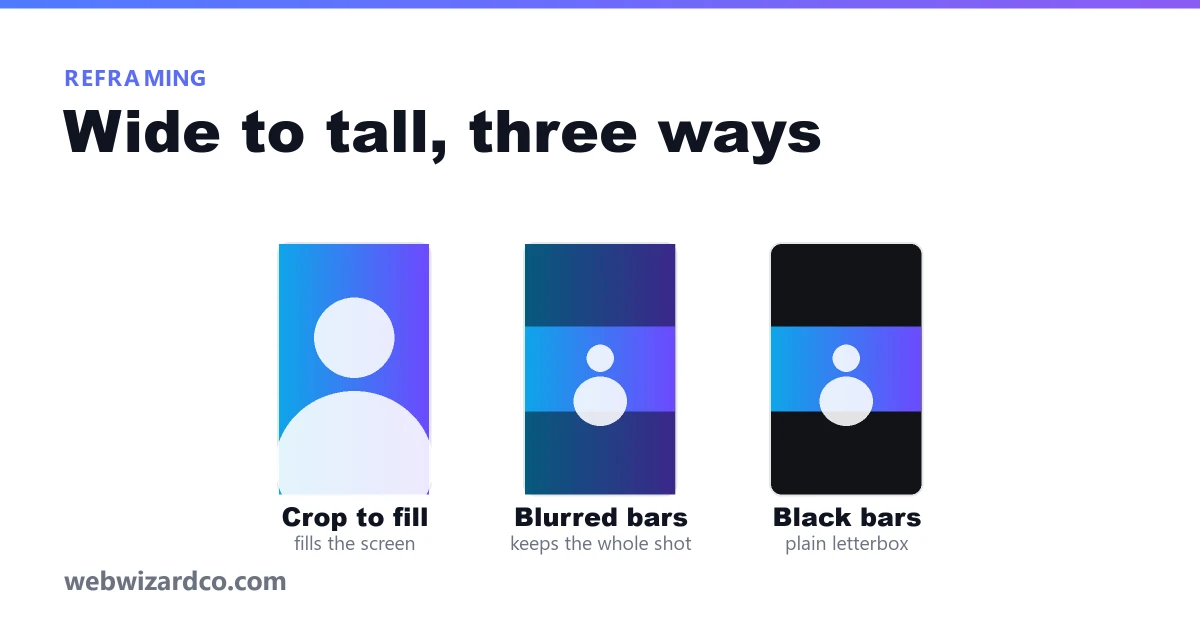
A 16:9 video in a 9:16 frame has to lose something. There are three honest answers and this tool gives you all three.
Blurred bars keep the entire shot and fill the space above and below with a soft, darkened copy of the frame. Nothing is lost, and it is the default here because it suits talking-head and screen-recorded footage, where cropping would cut off half of what matters.
Crop to fill uses every pixel of the tall frame and throws away the left and right of the shot. This is the right choice when your subject sits in the middle — and the wrong one when two people are talking at opposite edges. Zoom in and drag the preview to decide what survives.
Black bars is the plain letterbox. It is rarely the best look, but it is predictable, and some platforms handle it better than a blurred background in their own preview thumbnails.
Captions are not optional any more
The large majority of short-form video is watched muted, at least to begin with. Captions burned into the frame show up regardless of whether the viewer has subtitles switched on, and regardless of whether the platform generated any. That is why this tool draws them into the pixels rather than attaching a subtitle track.
If you already have a transcript, import an .srt or .vtt and the timings come with it.
If you don't, add a caption at the playhead and type — it is faster than it sounds for a 30-second clip. You can also
export an .srt whose timings are rebased to the start of your clip, which is what you want when the
platform asks for a subtitle file separately.
Why exporting takes as long as the clip
There is no server doing the work. Your browser plays the clip, each frame is drawn onto a canvas at the output size with your framing and captions applied, and the result is recorded as it goes. A 30-second reel takes about 30 seconds, and a 3-minute one takes 3 minutes.
A server-side version would be faster and would also mean uploading your footage to someone else's machine, waiting in a queue behind other people's jobs, and trusting that it gets deleted. For a tool that people point at unreleased footage and client work, that trade isn't worth making.
Worth reading first
How to make a reel from a longer video
Four steps, and the export is the only one that takes any time.
Load the video
Choose a file from your device, or drop one onto the page. Nothing uploads — the browser opens it locally.
Trim to the moment
Drag the handles on the filmstrip, or scrub and press Now to set the in and out points exactly where you want them.
Reframe to 9:16
Pick the shape, choose blurred bars or a crop, then zoom and drag the preview until the subject sits where it should.
Add captions and export
Add lines at the playhead or import an .srt, then export. You get an MP4 with no watermark.