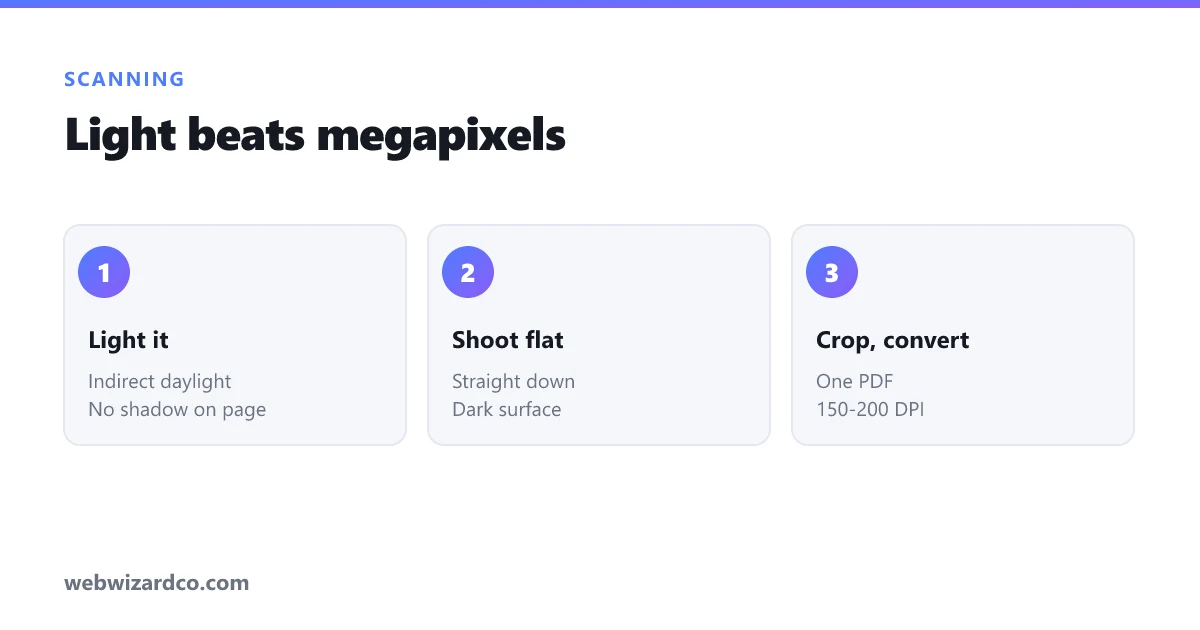
Almost every form, application and portal now wants documents as a PDF. Almost nobody owns a scanner. Your phone camera is genuinely better than a budget flatbed — but only if you avoid the handful of mistakes that make phone scans look like phone scans.
Get the light right first
Nearly every bad document scan is a lighting problem, not a camera problem.
- Use indirect daylight. Put the document on a table near a window, not in direct sun. Direct sun blows out the white paper and makes text bloom.
- Do not stand between the light and the page. Your own shadow falling across the document is the single most common ruined scan. Position yourself so the light comes over your shoulder from the side.
- Avoid the flash. It produces a hot white circle in the middle and dark corners, and on glossy paper it reflects straight back as an unreadable patch.
- Beware overhead lights. A ceiling light directly above puts your head's shadow on the page. Move to a window, or turn on more lamps from different directions to flatten the shadows.
Get the geometry right
A document photographed at an angle has a trapezoid shape — wider at the bottom than the top. Some readers will reject it, and it always looks careless.
- Shoot straight down. Hold the phone parallel to the page, directly above the centre. Not off to one side, not tilted.
- Flatten the paper. A curled document creates a shadow along the curl and distorts the text. Press it flat, or put it under a sheet of glass.
- Use a plain contrasting surface. White paper on a dark table gives clean edges to crop against. White on white makes finding the edge difficult for you and for any auto-crop.
- Fill the frame. Get close enough that the document occupies most of the shot, but leave a small margin so nothing is clipped.
- Steady the phone. Tap to focus, then take the shot. Blurred text is the one flaw that cannot be repaired afterwards.
Crop, straighten, then convert
Once you have the photos:
- Straighten before cropping. Rotating an image trims its corners, so if you crop first you lose more than you meant to. Our cropper handles both.
- Crop to the page edges. Remove the table, your fingers, everything that is not the document.
- Combine into one PDF. Drop all the pages into the images to PDF tool in the right order and download a single file. Multi-page documents should almost always be one PDF, not several attachments — sending six separate JPGs to an application desk is a reliable way to have your submission delayed.
Everything above runs in your browser. That matters here more than for most tasks, because the documents people scan are passports, bank statements, payslips and signed contracts. There is more on that distinction in are online image tools safe.
Making the PDF small enough
Here is where most people get stuck. Six phone photos at 12 megapixels each produce a PDF of 30 MB or more, and the portal wants 2 MB.
You have three levers, in order of how much they help:
- Resolution. You do not need 12 megapixels of a sheet of A4. Around 150–200 DPI is comfortably readable for text — roughly 1500–2000 pixels across the long edge. This is by far the biggest saving.
- Grayscale. If the document is black text on white paper, colour is storing nothing but the camera's noise and the paper's tint. Converting to grayscale often removes a third of the file.
- Quality. Around 70–80% is the sweet spot. Below 50%, text edges go furry and small print becomes genuinely hard to read.
The PDF compressor applies all three, and scanned documents typically come out 60–90% smaller. Full detail on the trade-offs is in how to reduce PDF file size.
One caveat worth knowing: compressing this way rasterises the pages. For a scan that is irrelevant — the pages were already photographs, with no selectable text to lose.
Check it before you send it
Open the finished PDF and view it at 100%, not zoomed out. Ask three questions:
- Can you read the smallest text on the page — reference numbers, dates, footnotes?
- Are all four corners of every page visible?
- Is every page there, the right way up, in the right order?
A rejected document usually costs days. Thirty seconds of checking is the best-value part of this whole process.
If the document must stay searchable
Everything above produces an image-based PDF: it looks right, but you cannot select or search the text. For most submissions that is completely fine — the person on the other end is reading it, not searching it.
If you genuinely need selectable text, you need OCR, which recognises characters and adds a text layer. That is a different job from scanning, and worth doing only when something downstream actually requires it.