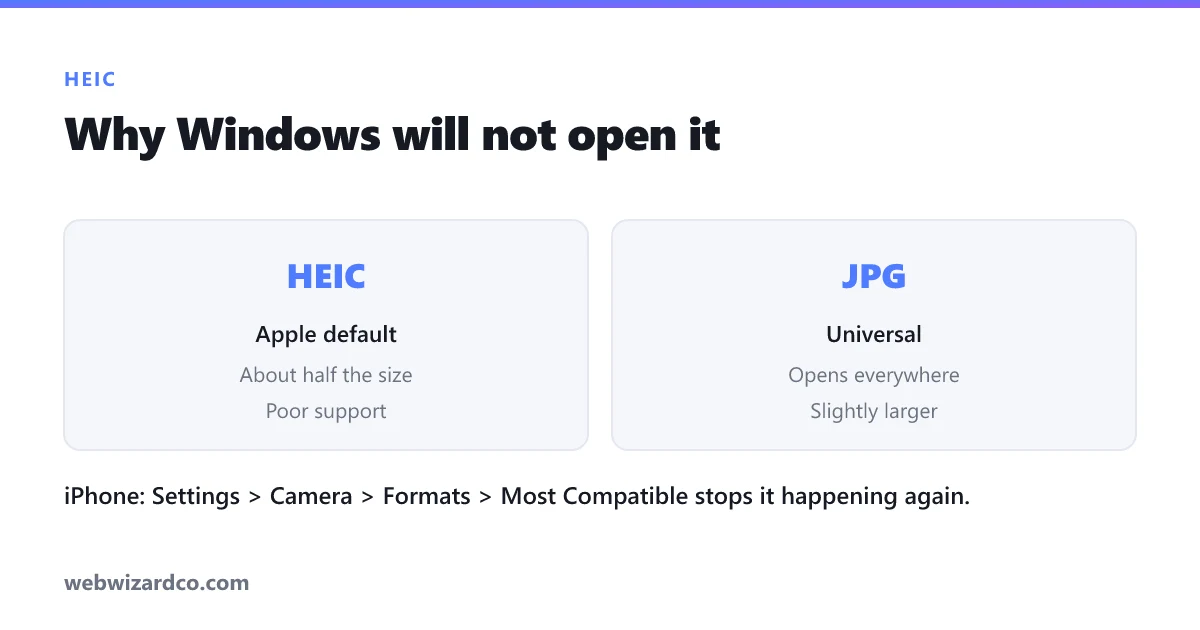
You AirDrop or email a photo from your iPhone, open it on Windows, and… nothing. That's because iPhones and iPads save photos as HEIC (High Efficiency Image Container) — a modern format that saves space but isn't supported everywhere. Converting to JPG fixes it instantly. Here are your options.
Option 1: Convert in your browser (free, nothing to install)
- Open the image converter.
- Drop in your HEIC file — it's decoded right in your browser.
- Choose JPG, set the quality, and download.
Nothing is uploaded — the whole conversion happens on your device, which matters if the photos are personal. You can also convert to PNG or WebP the same way.
Option 2: The Windows Photos app
Windows can open HEIC if you install Microsoft's free HEIF Image Extensions from the Microsoft Store. After that, open the photo in the Photos app and use Save as to export a JPG. It works, but it's one photo at a time and requires the extension.
Option 3: Change your iPhone so it saves JPG
To avoid the problem entirely, on your iPhone go to Settings → Camera → Formats and choose Most Compatible. New photos will be saved as JPG. (Existing HEIC photos still need converting.)
Converting a lot of photos at once
If you have a whole folder of HEIC files, the browser converter's bulk mode converts them all and hands you a single ZIP.