Resize an image
Resize to exact pixels or a ready-made social preset — processed privately in your browser.
Have several images? Try bulk mode (Pro) →
10 free resizes a month with a free account — Sign up · unlimited on paid plans
Size
Free, no watermark. Your image never leaves your device.
Popular sizes
Jump straight to a preset for common photo and social sizes.
How to resize an image
Resize any photo to an exact size or a social media preset in three steps — free, and private in your browser.
1
Upload your image
Drag and drop, or click to choose a JPG, PNG or WebP.
2
Choose a size
Pick a social preset or type an exact width and height. Lock the ratio to avoid distortion.
3
Download the result
Save your resized image instantly — no watermark.
Frequently asked questions
Is the image resizer free?
Yes — completely free, with no watermark and no sign-up.
Can I resize for Instagram or YouTube?
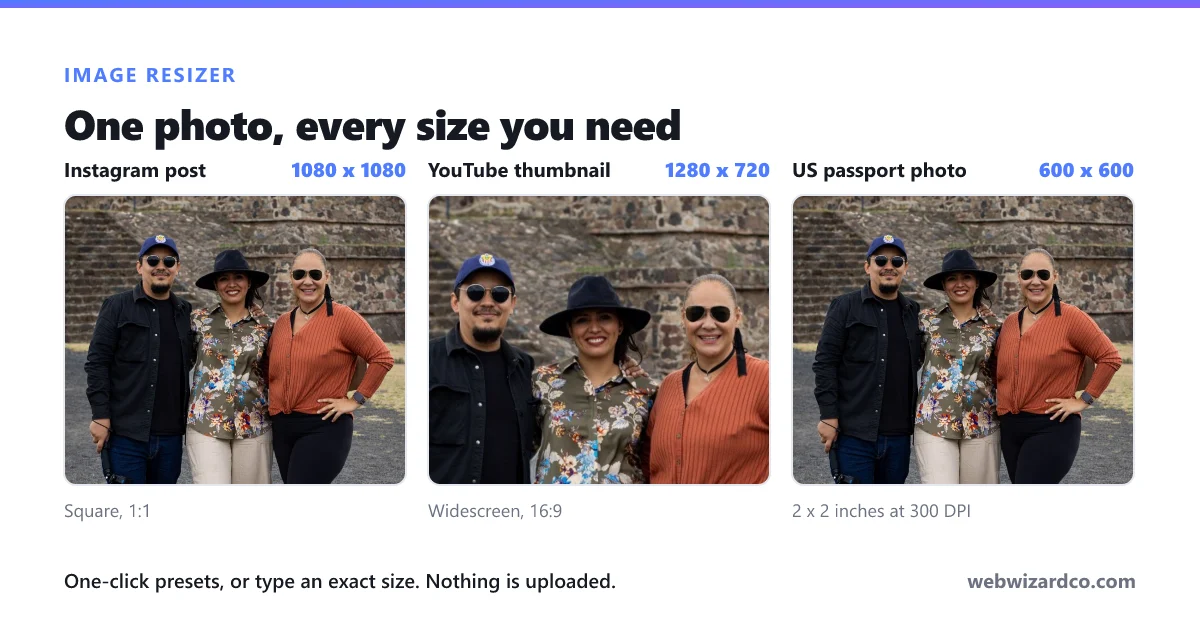
Yes. Pick a preset for Instagram posts and stories, YouTube thumbnails, Facebook and X covers, LinkedIn banners, passport photos and more.
How do I resize without stretching?
Keep “Lock aspect ratio” on, or use “Fit inside” or “Fill & crop” so your image keeps its proportions.
Will resizing reduce quality?
Making an image smaller keeps it sharp. Enlarging a lot can soften it — for that, try the AI image upscaler.
Are my images uploaded anywhere?
No. Resizing happens entirely on your device — your images never leave your browser.